Your average frame rate is not the number that ruins a fight. The number that ruins a fight is the slowest 1% of your frames — the 1% low, sometimes written P1 low — and the slowest 0.1%. A machine can hold 240 FPS on average and still feel like a slideshow twice a minute. This guide is about that second number.
It is written for someone who has just wiped their machine, or is about to. The order below is the whole point: a "ghost stutter" people chase for weeks can be the result of a system assembled in the wrong order, where Windows Update quietly replaced a driver, or a chipset package was installed after the GPU driver, or memory has been running at its fallback speed since the day the PC was built.
This page reflects what was verifiable on 2026-08-23. Every version number below carries a date, and the last section teaches you how to re-check all of it yourself, because half of these numbers will be stale within a year.
What this guide promises, and what it does not
There is a whole genre of "FPS guide" built out of numbers nobody can trace. We are not writing one. The rules this page holds itself to:
- If a claim has a source, the source is linked. If it doesn't, the page either says "community opinion, not measured" or leaves it out.
- Where independent measurements disagree, you get told they disagree. "The evidence is mixed" beats false confidence.
- No invented percentages. Not one number on this page was estimated, rounded up for effect, or carried over from another guide.
- Where a measurement exists but its author attached a warning to it, you get the warning too.
- Risky steps are labeled risky, including the ones this page recommends.
Here is the uncomfortable summary up front: most of the settings that circulate as "1% low fixes" have never been measured by anyone who published a method. The things on this page with real evidence behind them are few — a correct memory profile, a driver that isn't broken for your specific game, and not installing junk. Everything else is either a mechanism argument (honest, but not a measurement) or a decision you have to test on your own machine.
What a 1% low is, and why we ignore the average
Average FPS is the mean of every frame in a run, and averaging is exactly what hides a stutter. Sort your frame times from worst to best: the worst 1% is the 1% low (P1), the worst thousandth is the 0.1% low. That is where the jolt you feel lives. If the counter says 180 FPS on average while the 1% low sits at 70, what is on your screen is not a 180 FPS experience.
A second and separate thing is input latency. Reflex, Anti-Lag 2 and NVIDIA's Low Latency Mode reduce latency, and that reduction has been measured; there is no measurement showing they improve the 1% low. This guide keeps the two apart, because the two are easy to conflate.
Which Windows
Windows 11 25H2 — today's answer
As of 2026-08-23, the answer is Windows 11 25H2. Microsoft's own download page currently carries the label "(Current release: Windows 11 2025 Update l Version 25H2)", and the release information table lists 25H2 as generally available since 2025-09-30 with Home/Pro support running to 2027-10-12.
Do not install from 24H2 media. Not because you'd be unsupported — Microsoft states that unmanaged Home and Pro devices on 24H2 receive the 25H2 update automatically — but because 24H2 Home/Pro reaches end of updates on 2026-10-13, so you would be signing up for an entirely avoidable extra upgrade cycle on a machine you just built.
| Version | Status (2026-08-23) | Home/Pro end of support |
|---|---|---|
| Windows 11 25H2 | Current release, the clean-install target | 2027-10-12 |
| Windows 11 24H2 | Still serviced, upgrades to 25H2 automatically | 2026-10-13 |
| Windows 11 26H1 | Not for existing devices | — |
| Windows 11 26H2 | Does not exist today | — |
| Windows 10 22H2 | Out of support, paid/enrolled ESU only | 2027-10-12 (ESU) |
24H2 vs 25H2 performance: there is nothing to choose between them. The cleanest evidence is not a benchmark at all. On 2026-08-11, both versions received the same cumulative update — KB5121003, producing builds 26100.9168 and 26200.9168 — because 25H2 ships as an enablement package on the same servicing branch. Same code, same fixes, same day.
26H1 is not for you. Microsoft states it "is scoped to support new devices that come to market in early 2026 and is not designed as a feature update for existing devices. This version is not offered as an in-place update from 24H2 or 25H2 on existing devices." (Press coverage adds that the first devices are Snapdragon-based; that specificity comes from journalists, not from Microsoft's note.)
26H2 does not exist yet. As of 2026-08-23 it has no row in Microsoft's release table and did not appear in the 14 August 2026 Release Preview announcement, which listed only 24H2/25H2 and 26H1 builds. If you were waiting for it before formatting: there is nothing to wait for today.
Windows 10 is not a performance option any more
Windows 10 22H2 is out of mainstream support. The consumer Extended Security Updates program runs to 2027-10-12, with three enrollment routes (free with PC settings sync, 1,000 Microsoft Rewards points, or a one-time purchase of $30 USD or local equivalent plus tax), covering up to 10 devices. Microsoft is explicit about what you get: "ESU enrollment does not provide other types of fixes, feature improvements, or product enhancements. It also does not come with technical support."
There is a second deadline that is easy to miss. NVIDIA has stated that it will fully support Windows 10 with Game Ready and Studio drivers for an additional year, and that after October 2026 Windows 10 driver support transitions to a quarterly security update for three years, through October 2029. If you clean-install Windows 10 today for gaming, you hit that wall in about two months.
LTSC: the legal answer
Microsoft's own documentation says the long-term servicing channel isn't intended for deployment on most or all the PCs in an organization — it is for special-purpose devices doing a single important task, which "are also typically not heavily dependent on support from external apps and tools", and warns that over time "there might be some external tools that don't continue to provide legacy support". In a gaming context, "external tools" includes anti-cheat and game platforms.
There is no legal retail path for an individual to buy an LTSC license. Microsoft's Evaluation Center offers a 90-day evaluation that states "A product key is not required for this software", and directs anyone wanting to buy to "contact one of our Authorized Windows IoT Distributors". Recommending LTSC to a home gamer is, in practice, recommending a grey-market key. This guide does not.
Is Windows 11 actually faster in games?
Slightly, on the current evidence, and with real asterisks. In January 2026, TechSpot/Hardware Unboxed tested 14 games on Windows 11 25H2 against Windows 10 22H2 (Ryzen 7 9800X3D, RTX 5090, separate SSDs, VBS disabled in both software and BIOS on both sides, driver 591.74 — three branches behind today's) and found Windows 11 ahead by about 4% at 1080p and 5% at 1440p and 4K. Three things from that same article have to travel with the number:
- The author's own conclusion says much of the difference could potentially come down to the GeForce driver. In Spider-Man 2, Windows 11 led by 7% with an RTX 5090 — and the gap fell to zero with an RX 9070 XT.
- In The Last of Us Part II Remastered at 1080p, Windows 10 was ahead — 6% on average and 12% on the 1% low.
- The absurd 24% gap in that title at 4K was RTX 5090-specific, and the author suspects a bug in that card's behavior.
So: read the article yourself before treating "Windows 11 is faster" as a law. The reasons to install Windows 11 are support lifecycle and driver lifecycle, not a promised percentage.
VBS / Memory Integrity: a decision, not a step
Microsoft states that memory integrity is turned on by default on clean installs of Windows 11 on compatible hardware, and that "auto-enablement pertains only to clean installs, not upgrades of existing devices". If you are formatting, you start with it on.
What it costs, honestly: measurements relayed in 2023 (Intel i9-13900K, RTX 4090) showed disabling VBS improving 1% lows by roughly 6–8.7% at 1080p and 1440p and about 4.9% at 4K — the numbers were relayed by HotHardware from Tom's Hardware's testing, and the article's own most dramatic result carries an explicit "take it with a grain of salt" warning from the author, so we are not repeating that figure here. ComputerBase measured the same direction independently on a Ryzen 7 5800X3D and Ryzen 7 9700X: roughly 5–6% average and 7–8% on the 1% low.
And then the counter-evidence, from the same publication: in a December 2024 Windows 10 vs Windows 11 test (Ryzen 5 7600X3D, 13 games), ComputerBase measured Windows 11 with HVCI on at 129 FPS against 130 FPS with it off, and concluded that disabling security features is no longer necessary in most scenarios on Windows 11. Microsoft's own compatibility list also names MBEC/GMET as a requirement, which is the technical reason to expect the cost to be lower on newer CPUs than on the 2023 hardware those numbers came from.
There is also a cost on the other side. Riot's Vanguard On-Demand mode — the mode that stops the anti-cheat driver loading at boot — requires Windows 11 25H2 or newer plus Secure Boot, TPM 2.0, VBS, HVCI and IOMMU together. Players who don't qualify aren't locked out; they continue on the existing startup-loaded Vanguard mode. So the trade is "keep the kernel driver loading at boot", not "can't play".
Our position: leave it on by default, and if you decide to turn it off, do it as a deliberate, measured experiment on your own machine — not because a three-year-old number from different hardware says so. w0a does not flip this for you.
The install order
This order is not an FPS recipe. No published test measures what install order does to frame rate. The order exists so the result is reproducible and so Windows Update does not overwrite the driver you installed on purpose. Intel's own description of its chipset package — "not a driver and does not include drivers" — shows that even the vendor of the most basic step here makes no performance claim.
- Update and configure the BIOS/UEFI. — Why: a firmware update can reset your settings, and on an installed system it forces the disk-encryption recovery prompt; doing it before the format costs nothing.
- Clean-install Windows 11 25H2 from the official ISO; at first boot turn the Windows Update driver channel off temporarily, then finish the quality updates. — Why: Windows Update installs a display driver within minutes and writes over the one you were going to install by hand, and Microsoft has formally acknowledged that complaint.
- Install the chipset / CPU platform package. — Why: this is the layer that identifies your devices, and on AMD it is where thread placement and the power profile come from.
- Install storage, network and audio drivers; leave no yellow warning in Device Manager. — Why: a single device left on a generic driver becomes a ghost fault you will later blame on the GPU driver — and the next step needs a working network.
- Install the GPU driver last (on NVIDIA, with NVCleanstall). — Why: driver cleanup may need Safe Mode and a disconnected network, so the network has to be ready first; and the Windows Update driver channel has to be off before this step.
- Do your driver and Windows settings, turn the Windows Update driver channel back on, then take your first (baseline) measurement. — Why: without a "before" recording to compare against, you cannot say whether any later change did anything.
- Install w0a last. — Why: a tuning tool shows what it does when it lands on a clean, measured baseline; dropped onto a chaotic system it just adds one more layer to the fog.
Step 1 — BIOS/UEFI
Microsoft documents the trap explicitly: you must temporarily suspend BitLocker protection before non-Microsoft updates such as computer manufacturer firmware updates and TPM firmware updates, and if you don't, the system will not recognize the BitLocker key and will prompt for the recovery key on every restart. The command Microsoft gives is Suspend-BitLocker -MountPoint "C:" -RebootCount 0, where 0 means "stay suspended until I resume it manually".
That Microsoft article is scoped to Windows 10. The mechanism — the TPM measuring different firmware than it did when the key was sealed — is the same on Windows 11, but treat the article as the mechanism's source, not as a Windows 11 document.
On firmware updates themselves, ASUS's own FAQ is refreshingly blunt and applies to every vendor: "Without any special Reason, no need to update each version, just update to the latest version", and "Updating BIOS may have the risk of not booting up. Please back up your data first before updating the BIOS." It also tells you to keep the power supply connected throughout and to avoid touching the keyboard, mouse or USB devices during the flash.
The honest framing is not "if it isn't broken, don't touch it" — it's "if you don't have a reason, don't touch it." A clean install is a reason: it is the one moment where the update costs you nothing, because there is no encrypted volume, no saved settings and no game session to lose.
After a firmware update, do not assume your settings survived. Go back into the firmware and confirm the memory profile and Resizable BAR are still enabled. Treat this as a checklist step, not as a claim about what your board does.
Turn on the memory profile (XMP on Intel, EXPO on AMD). This is the strongest measured item on the page — and it also comes with the most important caveat. TechSpot's DDR5 testing on a Ryzen AM5 platform (published around April 2025) found that moving from DDR5-5600 to DDR5-8000 improved the 1% low in Marvel Rivals by 17% and the average by 9%. But the same review found that DDR5-6000 CL26 delivered performance very similar to the DDR5-8000 configuration, and that in CS2 the gain from the review's DDR5-6000 CL30 baseline to DDR5-8000 was about 4%. Two conclusions follow, and the second one matters more: enabling your memory profile is a real, measured gain. Buying a DDR5-8000 kit is not the same claim. That test is also AM5-only; do not carry it to an Intel platform.
Leave Secure Boot and TPM 2.0 on. Call of Duty: Black Ops 7 shipped with TPM 2.0 and Secure Boot requirements on PC, and the same requirement applies to Battlefield 6 through EA's Javelin anti-cheat (that report chains through another outlet rather than the publishers' own pages, so treat it as strong indication rather than a primary requirement sheet). Riot's Vanguard On-Demand mode also requires Secure Boot as part of its list. Turning these off gains you nothing measurable and can cost you access to games you own.
Turn on Resizable BAR / Smart Access Memory. On Intel Arc A-Series this matters enough that the Intel Driver & Support Assistant shows a message when its automatic system check finds Resizable BAR not present or not working properly — Intel's support article quotes it: "Resizable BAR is required for optimal performance with Intel Arc A-Series Graphics". By Intel's own wording, what you give up without it is optimal performance.
Turn on virtualization (Intel VT-x / AMD SVM). It is the prerequisite for VBS and for several anti-cheat features.
Do not chase AGESA versions for FPS. No measurement backs "a newer AGESA gives better frame times"; update it when you have a stability or compatibility problem, not before.
What to leave alone: the guides telling you to disable Hyper-Threading/SMT or E-cores for gaming. The widely-circulated numbers behind that advice come from a source that published no hardware, no measurement tool, no run count and no game list. What is certain is the trade: you would be giving up known multi-core capacity for a gain nobody has published a method for. There is nothing here to copy.
Step 2 — Installing Windows and the first boot
Use Microsoft's official download page for the ISO or the media creation tool. Do not use third-party ISO mirrors.
Expect the account requirement: Microsoft's specifications page states that "Windows 11 Pro for personal use and Windows 11 Home require internet connectivity and a Microsoft account during initial device setup". This is a privacy and preference question, not a performance one, and there is no measured frame-time effect either way. We are also not printing bypass commands: they are tied to specific builds and would be wrong within months.
Check the known-issues page before you install
Microsoft's release health pages for 25H2 and 24H2 list open investigations. As of 2026-08-23 there was an open investigation into certain games becoming unresponsive, which Microsoft associated with driver components installed by peripherals with RGB lighting features — with Microsoft itself still determining whether the cause is on their side. We are deliberately not reproducing the details or the workaround here: that record changes weekly, and a guide that hard-codes it will be wrong within a month. Open the page. It takes ten seconds and it is the single highest-value pre-install check you can do.
Turn off the Windows Update driver channel — temporarily
Microsoft has publicly acknowledged the problem this step solves. In a May 12, 2026 post on the graphics driver publishing policy, the Hardware Dev Center describes customers "who actively manage their display drivers experiencing unwanted downgrades through Windows Update". The fix is real but partial and slow: it applies to new driver submissions targeting new devices, with a pilot from April to September 2026 and broad application in Q4 2026–Q1 2027, while "drivers that are currently published with 4-Part HWID targeting will continue to function as-is". In other words, for the life of this guide, the race is still live.
On Pro and above, the policy is at Computer Configuration > Administrative Templates > Windows Components > Windows Update > Do not include drivers with Windows Updates — Microsoft's own documentation gives that exact path. On Home, the route that exists in every edition is sysdm.cpl → Hardware → Device Installation Settings → No.
Microsoft's written recommendation is to leave the driver policy at its default (on), because drivers are generally beneficial. Turn it off for the duration of this build and turn it back on at step 6. If you skip the "turn it back on" step, you are silently opting out of driver security fixes for the life of the machine.
Step 3 — Chipset and the CPU side
On Intel, this is not a performance step and Intel says so. Intel's own article states that the Chipset Software Installation Utility "is not a driver and does not include drivers" — it installs INF text files that tell the operating system what a piece of hardware is, chiefly its product name, and the practical effect is fewer yellow warnings in Device Manager. There is no driver code in it to make anything faster, so any guide claiming FPS gains from a chipset INF is claiming a gain from a text file.
On AMD, the chipset package does write to CPU behavior. The clearest evidence is AMD's own release note for chipset driver 3.10.08.506, which restores intended function and behavior of UEFI CPPC2 ("preferred core") on Windows 11; when CPPC2 was broken, Windows might not preferentially schedule threads on a processor's fastest core, with the effect more pronounced on processors above 8 cores and above 65W. The package also installs the Ryzen power plan.
That specific bug is from 2021 and was fixed in 2021. It is cited here as proof that the AMD chipset package touches scheduling and power management — not as something you will experience today. We are not reproducing the percentage figures attached to that era's coverage; they could not be verified and they do not describe a current machine.
Dual-CCD X3D owners: this is where your package matters most. On Windows, the AMD 3D V-Cache Performance Optimizer watches workloads, keeps games on the CCD with the 3D V-Cache, and dynamically parks the other CCD; it ships alongside the AMD PPM Provisioning File Driver, both from the chipset package. Single-CCD X3D parts have no second CCD to steer away from, and the Ryzen 9 9950X3D2 Dual Edition carries V-Cache on both CCDs, so it doesn't need this steering either.
Step 4 — Storage, network, audio and vendor suites
Storage: the stock Microsoft NVMe driver is the right default. Microsoft's BypassIO documentation — the fast path DirectStorage uses — lists support on NVMe storage devices only, on the NTFS file system only, for noncached reads only, and fsutil reports stornvme.sys as BypassIo compatible. The same document shows that with BitLocker Drive Encryption enabled, volume stack bypass is disabled anyway. The practical point for this guide is simpler than any of that: storage driver choice affects load times and asset streaming, not your in-game frame time. Don't spend effort here chasing 1% lows.
Network: install the plain NIC driver, skip the "performance suite". If a prioritization suite is already installed, Intel documents how to disable the prioritization engine. The reason to skip it is not a measured latency gain — no such measurement is being claimed here — it is that a network stack with fewer things rewriting its traffic is a network stack with fewer things to debug.
Audio: the board vendor's driver, nothing else.
RGB, fan and "gaming center" suites: leave them off a fresh install if you can. The argument is not that they cost you frames — nobody has measured that. The argument is that a lighting utility installs a permanent ring-0 driver, and that class of driver has a documented exploitation history: Cisco Talos published an analysis of CVE-2025-3464 in ASUS's AsIO3.sys on 2025-06-26, an authorization bypass; NVD rates it CVSS 8.8. That specific issue was patched by ASUS and required an attacker to already be on the system — it is a reason to think about attack surface, not a reason to panic about a current hole. It is also worth noting that Microsoft's open games-unresponsive investigation as of 2026-08-23 points at driver components installed by RGB peripherals.
Step 5 — The GPU driver
NVIDIA — which version
| Your GPU | Driver as of 2026-08-23 | Notes |
|---|---|---|
| NVIDIA Turing and newer (GTX 16, RTX 20/30/40/50) | 610.88, released 28 Jul 2026 | Game Ready and Studio shipped the same day from the R610 branch |
| NVIDIA Maxwell / Pascal / Volta (GTX 900, GTX 10, TITAN V) | 581.80 (4 Nov 2025) was the last Game Ready; 582.66 (16 Jun 2026) is the current security release | 582.66 states it "is only for Maxwell, Volta, and Pascal-based GeForce GPUs" — modern cards must not install it |
| NVIDIA Kepler (GTX 600/700) | No current branch supports these | They appear in none of the 610.88, 582.66 or 581.80 support tables |
| AMD Radeon | Adrenalin 26.8.1, released 20 Aug 2026 (adds RX 9050 4GB support) | See the Starfield exception below |
| Intel Arc (A-series, B-series) and recent integrated | 32.0.101.8974 WHQL, released 14 Aug 2026 | One package covers Alchemist, Battlemage and recent integrated graphics |
| Intel 11th–14th gen integrated | Separate legacy package | No longer in the Arc package; check Intel's download page for your generation |
Download only from the vendors: NVIDIA, AMD, Intel Arc.
NVIDIA 610.88 has exactly one entry in its Open Issues section, and it lands on a setting people are constantly told to change: "Prefer Maximum Performance" Power Management Mode may not be applied correctly [6007998]. That line is present in all four R610 releases — 610.47, 610.62, 610.74 and 610.88 — spanning about two months of releases from 26 May to 28 July 2026, and roughly three months up to today. It does not appear in the R595 notes, so it arrived with this branch. If you set that mode, verify from your actual GPU clocks that it took effect instead of assuming.
AMD 26.8.1 carries two entries you should read before installing. AMD's own release note says intermittent game crashes may be observed while playing Starfield on Radeon RX 9000 series products, and that "Users experiencing this issue are recommended to install AMD Software: Adrenalin Edition 26.7.1" — a driver from 28 July 2026, one month older, so this is a practical instruction and not a request to travel back years. Separately: "AMD Smart Access Memory may become disabled after driver installation on Windows 10 systems." That one is silent, so check it in Adrenalin after installing.
Intel 32.0.101.8974 has an open issue that specifically affects measuring. Several games can crash when XeSS Multi-Frame Generation is used at the same time as CapFrameX or RivaTuner Statistics Server. A related Minecraft Java/Vulkan crash with the same tools was fixed in this release, but the XeSS MFG one is still listed. Since you are about to be told to turn frame generation off while measuring anyway, this is one more reason to do so.
Removing the old driver (DDU). On a genuinely clean Windows install, you do not need this step. DDU matters when you are replacing an existing driver or cleaning up after a failed install.
Download it only from Wagnardsoft — fake DDU sites are common. The current version is 18.1.5.7, released 19 August 2026, and it specifically improved Intel cleanup: two leftover Intel services (IGSDSserviceDiscrete, used by Arc/discrete graphics, and PmtChildDriver) and leftover display driver packages from recent Intel drivers in the driver store are now recognized and removed.
The official usage guide says Safe Mode is strongly advised but optional: "I HIGHLY recommend you use DDU in Safe Mode to minimize any potential issues, however it's optional." In normal mode you have to run DDU twice to be as effective. It also tells you to disconnect from the internet so Windows doesn't grab a driver mid-process, to back up first, and to have your BitLocker recovery key with you.
This is the one step on this page that can genuinely lock you out of your PC. Windows Hello PIN does not work in Safe Mode. If you do not know your actual account password, you may be unable to sign in there. DDU 18.1.5.7's changelog exists partly because of this: it keeps its helper service in a permanent location because "this service is the only thing able to bring back a computer whose user cannot sign in while in Safe Mode (forgotten password, PIN not available there)". Know your password, have your recovery key, then proceed.
Installing the driver with NVCleanstall
NVCleanstall (often written NVCleanInstall) unpacks NVIDIA's driver package, lets you remove components NVIDIA's own custom install won't let you remove, and repackages the result.
Set expectations from its maker, not from YouTube. TechPowerUp's product page promises exactly one thing: removing components you don't need "not only keeps things tidy, but also lowers disk usage and memory footprint". Read the page: there is no FPS claim, no latency claim, no frame-time claim anywhere on it. Neither is there one on the download page. No checkbox in this tool has a measured effect on your 1% lows. Use it for control over what gets installed, and for nothing else.
Version and freshness. The current release is v1.19.0, dated 23 April 2025 — 16 months old as of 2026-08-23, and its last driver-compatibility fix targeted a driver from that era. It is not abandoned: on 27 May 2026 its author wrote that "it continues to be fully supported and developed, because I need it for myself". Its support forum carries a steady stream of 2026 reports against current driver branches — failed installs, missing components, VR issues. That friction is real and ongoing; go look at the current threads before you commit to this path.
Repackaging means re-signing. The package you install is signed by TechPowerUp, not NVIDIA, and it is by definition outside NVIDIA's official support: a problem you hit cannot be reported to NVIDIA as a driver bug. The tool ships a dedicated EasyAntiCheat-compatible signing mode — the fact that such a mode needs to exist tells you re-signing and anti-cheat do interact. There is no equivalent guarantee for other kernel-level anti-cheats such as Vanguard. If you play competitive titles with kernel anti-cheat, the low-risk choice is the stock NVIDIA installer.
The screens
The wizard is five screens: Select Driver Version To Install, Select Components To Install, Preparing Sources, Installation Tweaks, Finished. The first offers three sources — install the best driver for your hardware, manually select a version, or use driver files already on disk. The component screen has Display Driver (required) greyed out and always checked, and All / Recommended / Minimum presets at the bottom right.
The screenshots on TechPowerUp's product page show old versions in their title bars, and the component and tweak lists have changed across releases. Treat any list in any guide, including this one, as a description of the shape of the screen, not an inventory of your build.
What to uncheck, and what to leave alone
| Component / option | Recommendation | Why |
|---|---|---|
| Display Driver | Cannot be unchecked | It is the driver |
| NVIDIA App / GeForce Experience components | Uncheck | This guide's chosen path; the losses are listed in the next section |
| Telemetry | Uncheck if the component appears | It is a dependency of GeForce Experience, so it can only go if GFE goes |
| HD Audio via HDMI | Leave checked if any audio goes out over HDMI/DisplayPort | Removing it removes display audio; there is no measured frame-time gain to trade for it |
| PhysX | Leave checked | See below |
| Disable NVIDIA Container | Do not check | The tool's own note says it breaks the NVIDIA Control Panel |
| Disable HDCP | Do not check | Netflix requires an HDMI port supporting HDCP 2.2 or later for 4K/HDR, and quality quietly drops otherwise |
| Disable MPO | Do not check | See the box below |
| Enable Message Signaled Interrupts | Optional, unmeasured — see below | No public measurement in either direction; verify it applied if you try it |
| Disable Installer Telemetry & Advertising | Fine to check | Installer-level, not driver behavior |
| Perform a Clean Installation | Check it | This is NVIDIA's own clean-install flag; it is not a substitute for DDU |
| Install NVIDIA Control Panel App from Windows Store | Check it | You are skipping the NVIDIA App, so this is how the Control Panel gets installed — see its own section below |
On PhysX: NVIDIA discontinued 32-bit support on RTX 50-series Blackwell cards in early 2025, which ended 32-bit PhysX there, then restored it for a specific list of older titles with driver 591.44 on 4 December 2025: Alice: Madness Returns, Assassin's Creed IV: Black Flag, Batman: Arkham City, Batman: Arkham Origins, Borderlands 2, Mafia II, Metro 2033, Metro: Last Light, and Mirror's Edge. If you play any of those, keep the component.
On the "Disable NVIDIA HD Audio device sleep timer" tweak: it is a compatibility fix for audio devices that misbehave when the timer fires, not a performance option.
On Message Signaled Interrupts: the mechanism is real and Microsoft documents it — MSIs let a device trigger an interrupt by writing a value to a memory address instead of using a dedicated pin, and Microsoft specifies that a driver's INF file enables it in the registry during installation via MSISupported. Note what Microsoft's documents do not contain: any claim about latency, speed, frame time or FPS. We could not find a public, reproducible, numeric measurement of MSI's effect on in-game 1% lows in either direction — that is "no measurement found", not "no effect". If you enable it, verify it applied afterwards rather than assuming — with any tool, a ticked box is a request, not a receipt.
Leave "Disable MPO" unchecked. Two reasons, and neither of them is a scare story. First, w0a refuses to write MPO and TDR registry values at all, and a guide from us should not hand you through the back door what our product declines to do through the front. Second, community reports describe the old MPO switch as unreliable on Windows 11 24H2 and ignored on 25H2 — not measured, but one more reason not to write a key whose behaviour on current Windows nobody can vouch for.
After installing: verify, don't assume
There is one documented case of an unattended NVCleanstall install reporting success while the driver version never actually changed; the developer could not reproduce it, so treat it as machine-specific rather than a general defect. In that same thread the user's fix was the order this guide recommends anyway: run DDU first, then install with "Clean Installation" checked. Either way, open the NVIDIA Control Panel or Help > System Information and confirm the driver version you are actually running before you measure anything.
The state of the NVIDIA Control Panel
The biggest thing you need to know before choosing this path. As of driver 610.47 (26 May 2026), NVIDIA states: "After 20 years of dedicated service, the classic NVIDIA Control Panel is officially retiring for Game Ready and Studio Drivers." Existing installs remain "unless they perform a clean installation" — which is exactly what you just did — and while it can still be downloaded from the Microsoft Store, NVIDIA says "we won't be adding features, fixes, or other changes." This guide's route is a supported-today, unmaintained-going-forward route. Choose it knowingly.
Two practical notes on that. The retirement notice lives on NVIDIA's driver news page, not in the release-notes PDF — the 610.47 and 610.88 PDFs still list "DCH NVIDIA Control Panel — 8.1.969.0" as a packaged module, which is why user reports about whether the Control Panel files are still in the package genuinely conflict (one user reported them missing on 610.47; the NVCleanstall author replied the same day with a screenshot saying they were still there). And NVIDIA's own release notes list a known issue titled "Issues Installing the NVIDIA Control Panel from the Windows Store", where the download freezes at the "Starting download..." stage — scoped in the notes to Windows 10, so treat it as "reported install problems", not "it doesn't work".
If the Control Panel isn't there after your clean install, get it from the Microsoft Store. If you'd rather not depend on a retired application, note that the settings themselves do not live in the front-end: they live in the driver's profile database, and NVIDIA Profile Inspector uses the same driver settings API. NVIDIA has published no official parity table between interfaces, so verify individual settings rather than assuming a one-to-one mapping.
What you give up by skipping the NVIDIA App
You are entitled to know exactly what you're trading away. Based on NVIDIA's own App release highlights:
- ShadowPlay recording, including 240 FPS capture (11.0.8) and AV1 recording (10.0.1)
- One-click GPU tuning and the Performance Panel (10.0.1)
- Automatic optimal game settings, and driver update notifications
- Driver rollback (10.0.3)
- G-Assist (11.0.3)
- Automatic Shader Compilation (11.0.7), which "rebuilds DirectX 12 shaders while your system is idle, reducing the frequency of game runtime compilation after driver updates"
- Smooth Motion (11.0.2 on RTX 50, 11.0.5 on RTX 40) and DLSS 4.5 Dynamic Multi Frame Generation (11.0.7)
Of that list, only Smooth Motion, Automatic Shader Compilation and multi-frame generation touch frame time at all. The rest is capture, convenience and automation. Skipping the App does not cost you 1% lows — and we are not going to pretend it does in the other direction either.
Two honest counterweights to the usual reasons for skipping it:
- "It forces an account" is not true any more. The App does not require sign-in for driver installation, overlay, performance monitoring, filters or G-SYNC configuration; only the Redeem tab needs an account.
- If avoiding the App is your only goal, you may not need a third-party repackager at all: users report that the stock NVIDIA installer lets you deselect the App component during installation. Check your own installer before reaching for a re-signed package.
AMD Radeon
AMD ships its own cleaner. The AMD Cleanup Utility is "designed to remove any previously installed AMD graphics and audio drivers/software", runs standalone on Windows 7 and later, is recommended to be run in Safe Mode for best results, and explicitly "does not remove or modify AMD chipset drivers". Short address: amd.com/cleanuninstall. That covers the clean-removal need without a third-party package. If you must roll back, use AMD's own previous-versions archive (that link is one product's page — navigate to your own model rather than editing the URL).
Intel Arc
Intel has a clean-installation option in its installer. Tick it there rather than trusting a screenshot in any guide, including this one; Intel's "Clean Installation of Intel Graphics Drivers in Windows" article is the reference.
Arc owners have a rollback floor. In April 2026 Intel removed Arc drivers older than 32.0.101.6987 from the Download Center (and 7th–10th gen graphics drivers older than 31.0.101.2141). Practically: keep a local copy of whatever version currently works for you, because "just reinstall the old one" may not be an option later. Do not go looking for third-party driver archives — that means running unverified binaries with no official support.
The largest measured 1% low change on this entire page is an Arc result. Intel's 7028 driver branch, tested on an Arc B580 with a Ryzen 5 5600 in Marvel's Spider-Man Remastered, improved the 1% low by about 43% and the average by about 36%. Read the detail and the full test before generalizing, because the qualifiers are large: the fix was game-by-game rather than architectural, older CPUs such as the Ryzen 5 2600 still showed reduced performance, the article covers B-series cards exclusively with no A-series testing, and the measurement is from October 2025 comparing that branch against the driver before it — not against today's 32.0.101.8974. It is not "+43% for everyone".
Precompiled Shader is Xe2-and-newer only — Arc B-series and recent integrated graphics. Intel has said it will not enable it for Arc Alchemist. A-series owners install the same driver and simply don't get the feature. The claimed benefit is Intel's own figure: first-load times cut by up to 2x in supported games, by precompiling shaders — which also removes the compilation stutter those first runs carry.
Downgrading a driver
You do not need a forum for this. NVIDIA's own release notes document branch-level regressions:
- 581.42 (30 Sep 2025) lists as fixed: "R580 drivers causing stuttering in games using GODOT engine [5466820]".
- 591.44 (4 Dec 2025) lists as fixed: "Black Myth: Wukong: Lower performance in driver branches newer than R570 [5562283]" — an admission that every branch after R570 had been slower in that game until then — and, also as fixed, lower performance in some games on R580-or-newer branches after the Windows 11 October 2025 update KB5066835 [5561605].
- AMD's 26.8.1 note pointing Starfield players back to 26.7.1 is the same phenomenon on the other vendor.
The correct lesson from this is not "downgrade your driver". It is: install the current driver, finish all your updates, and then measure — and only consider a different version if you can document a concrete regression on your own machine, in your own game.
Security, stated in Windows terms. NVIDIA publishes signed bulletins in a public repository. In the May 2026 bulletin, 15 CVEs are listed, of which five affect Windows, the most severe rated CVSS 7.8; the fix landed in GeForce 596.36 for Windows (and 582.53 on the Maxwell/Volta/Pascal branch). The January 2026 bulletin lists 5 CVEs of which 3 affect Windows, fixed in 591.59.
The headline CVE from the May bulletin — the CVSS 8.8 use-after-free that gets quoted everywhere — is described by NVIDIA as affecting the Display Driver for Linux, with all affected-product rows Linux or vGPU. It is not a Windows gamer's number and we are not going to present it as one. The honest sentence is: a Windows user sitting on 581.80 today is missing the Windows fixes from both bulletins — 8 CVEs, worst rated 7.8.
Anti-cheat: the popular version of this warning has no source. "Downgrade your driver and you get banned" is not something any anti-cheat vendor says. BattlEye's FAQ says it "is blocking certain software that is using kernel drivers which contain known security issues that can be exploited by cheats" and names specific software — ReShade and SweetFX in certain titles, Cucusoft Net Guard, MSI Dragon Center and MSI SDK, SpeedFan. Blocking a graphics driver by version is not among the things that page describes.
The real, documented anti-cheat risk in this territory is different: driver-level features that reach into game code. In October 2023, AMD's Anti-Lag+ triggered VAC bans in Counter-Strike 2; AMD pulled the feature in the next Adrenalin release and Valve reversed the bans. That event was widely reported; we could not open the primary article text while writing this page, so treat the specific version numbers as reported rather than verified, while the event itself is well established. Today's Anti-Lag 2 requires per-game integration rather than being forced globally from the driver, which is consistent with AMD's own 26.8.1 note reporting it as active or inactive on a per-title basis.
Step 6 — Driver and Windows settings
Measured — but for latency, not for 1% lows. If you use G-SYNC, the setup with real test data behind it is: G-SYNC on, V-Sync on in the NVIDIA Control Panel (not in-game), and a frame rate limit at least 3 FPS below your maximum refresh — 57 @ 60Hz, 97 @ 100Hz, 117 @ 120Hz, 141 @ 144Hz. Blur Busters' reasoning for driver-side V-Sync is that some in-game implementations add their own frame buffer or pacing behavior, enable triple buffering automatically, or don't work at all. Reflex applies its own automatic caps (~59 @ 60Hz, ~97 @ 100Hz, ~116 @ 120Hz, ~138 @ 144Hz, ~224 @ 240Hz).
Those are input latency measurements, not frame-time percentile measurements. Anyone telling you this combination is "the biggest 1% low stabilizer" is converting a latency result into a frame-time promise. It is the correct sync-and-latency setup. That is a different, and still very worthwhile, thing.
Low Latency Mode does less than people think, per NVIDIA. At launch NVIDIA wrote that it supports "all GPUs in DX9 and DX11 games (in DX12 and Vulkan titles, the game decides when to queue the frame)", and that "Low latency modes have the most impact when your game is GPU bound, and framerates are between 60 and 100 FPS". DX12 support was added later in driver 551.23; Vulkan is still not supported. Blur Busters' synthesis — treat it as expert judgement, not a measurement table — is that these settings only reduce latency when GPU usage is at 99%+, and that in order of effectiveness it goes Reflex, then a manual FPS limit that prevents 99% GPU usage, then LLM "Ultra", then LLM "On". If your GPU usage is below 99%, none of them are doing anything.
HAGS: no prescription, and no numbers. The most-cited article on the subject gives no game numbers at all — it describes "negligible performance gains and some performance losses" and concludes it "is really something you're going want to trial yourself on a game-by-game basis". Its only figures are from content creation apps. Don't assume today's default either: check your own toggle at Settings > System > Display > Graphics, and if you change it, change it as a measured experiment.
Game Mode: leave it on, and expect nothing dramatic. No independent test with a published method exists for it. The mechanism is what is honest to say: Game Mode does not create resources, it prioritizes them — so its effect can only show up in your 1% lows when the CPU is genuinely contended, and on an idle, powerful system it sits below measurement noise. There is no measured harm and a conditional benefit. That's the whole story, and it does not come with a percentage.
Settings with no source in either direction. Threaded Optimization, Radeon Chill, Enhanced Sync and Radeon Boost are all routinely prescribed in setting lists. We could not find independent 1% low measurements for any of them, in either direction, and neither vendor documents the behavior claimed. That is not proof they do nothing; it is a reason we will not tell you to change them. AMD's Anti-Lag 2 and NVIDIA's Reflex target input latency; no 1% low measurement was found for either.
Turn frame generation off while measuring. AFMF, FSR Frame Generation and XeSS MFG insert frames that carry no new game state, so a raw 1% low derived from a frame counter no longer describes responsiveness. This is a definitional point, not a claim that frame generation causes stutter — we found no measurement supporting that claim, and the article usually cited for it does not contain one.
Last thing: turn the Windows Update driver channel you turned off in step 2 back on. It was off only for this build; Microsoft recommends leaving it at its default (on).
Step 7 — w0a
Everything up to here was the operating system and its drivers. This last step is the part that is tuned per machine, and it comes last for one reason: on a system where the driver order was wrong, a tweak does not fix the stutter, it hides which layer caused it.
Download it from w0a.app. It is a single .exe — no installer, no framework to install first, nothing left behind in Program Files. It needs administrator rights because it writes to HKLM and to power plans.
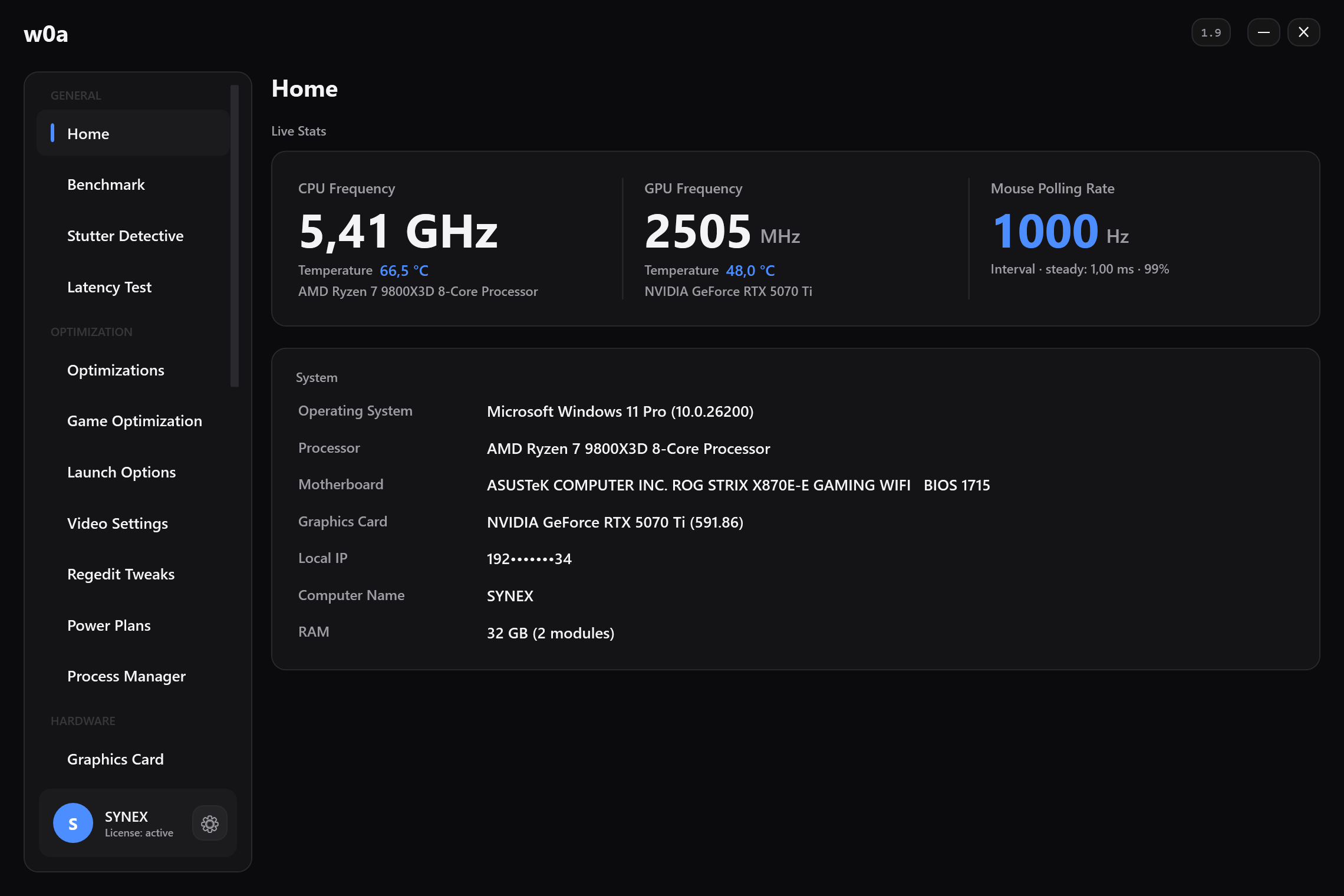
The pages fall into two groups, and you should know which is which before you start:
| Free | Plan (Pro) required |
|---|---|
| Home — temperatures, clocks, usage | Regedit Tweaks (21 entries) |
| Benchmark — average and 1% low, before/after | Graphics Card |
| Optimizations (39 switches) | Game Optimization |
| Fix — the repair cards | Process Manager |
| RAM Settings — memory in use, bandwidth test, memory cleaner | Power Plans |
| Launch Options, Video Settings | Internet (adapter tuning) |
| DNS, Ping | RAM Timings |
| Drivers, Startup, Uninstall Apps | Stutter Detective, USB Ports, Latency Test |
| Logs, Backups |
Getting Pro without paying: the 3-day trial
You do not have to buy anything to follow this guide to the end. There is a 3-day Pro trial. Discord is where you prove the claim is yours, and the app is where you spend it:
- Open Settings, find the 3-Day Pro Trial card and press Join the Discord server.
- In the server, type
/trial. The bot answers you and nobody else, and if you are eligible its
reply carries a one-time claim code shaped like ABCDE-FGHJK.
- Back in the app, paste that code into the box on the trial card.
- Press Claim Trial. Pro is active on that device straight away — there is no key to type in.
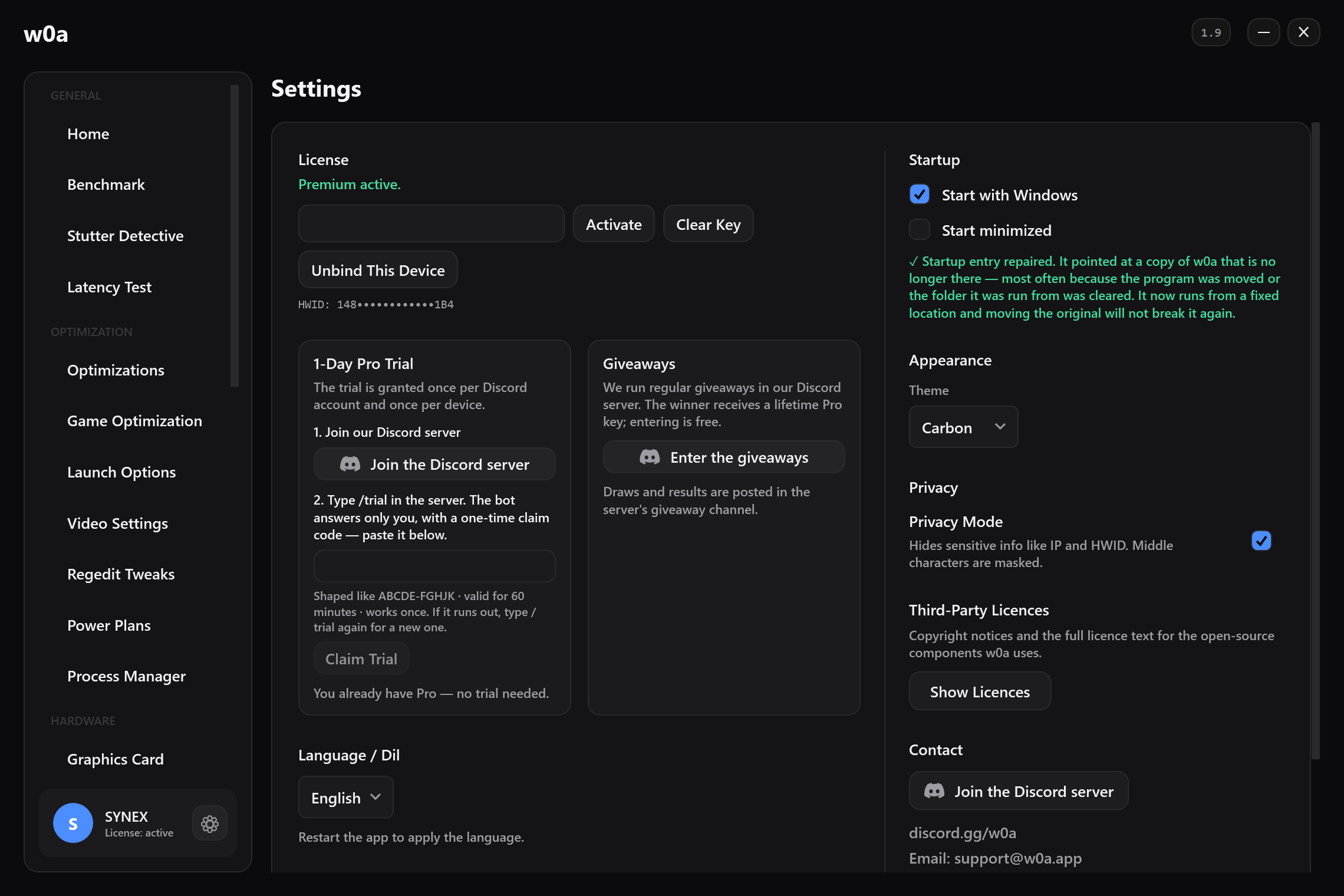
The code lasts 60 minutes and works once. If it runs out, type /trial again for a new one — asking again costs nothing and does not use up your trial. Do not paste the code anywhere public: whoever holds it can spend your trial on their own machine.
The trial is granted once per Discord account and once per device, and the Discord account has to be at least seven days old. Those two rules exist so the trial cannot be farmed with new accounts; they are not there to catch you out.
Measure before you touch anything
This is the step people skip, and skipping it is why so much of this field is folklore. Open Benchmark, pick your game, press Start Capture, play the same map or the same replay for one to two minutes, come back and stop.
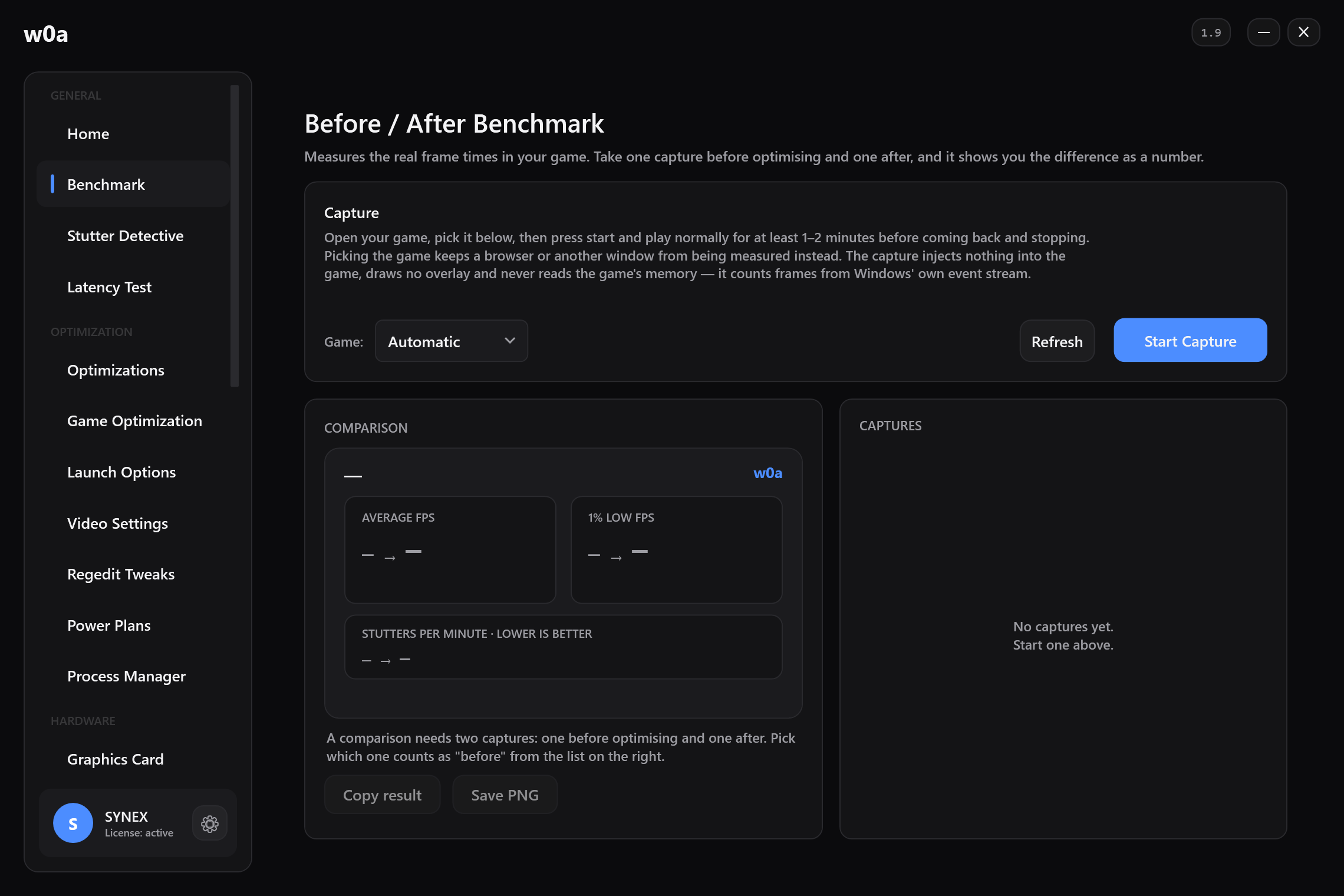
It reports average FPS, 1% low FPS and a third figure that is either stutters per minute or the worst frame in milliseconds, depending on what the two captures carry. The 1% low is the number this whole guide is about — the average can rise while the game feels worse. The capture reads frame times from Windows' own event stream: it injects nothing into the game, draws no overlay and never reads the game's memory.
Take that first capture before you change anything in w0a. When you take the second one, use the same scene and the same in-game settings, or you are comparing two different things and the number means nothing.
Optimizations — free, 39 switches
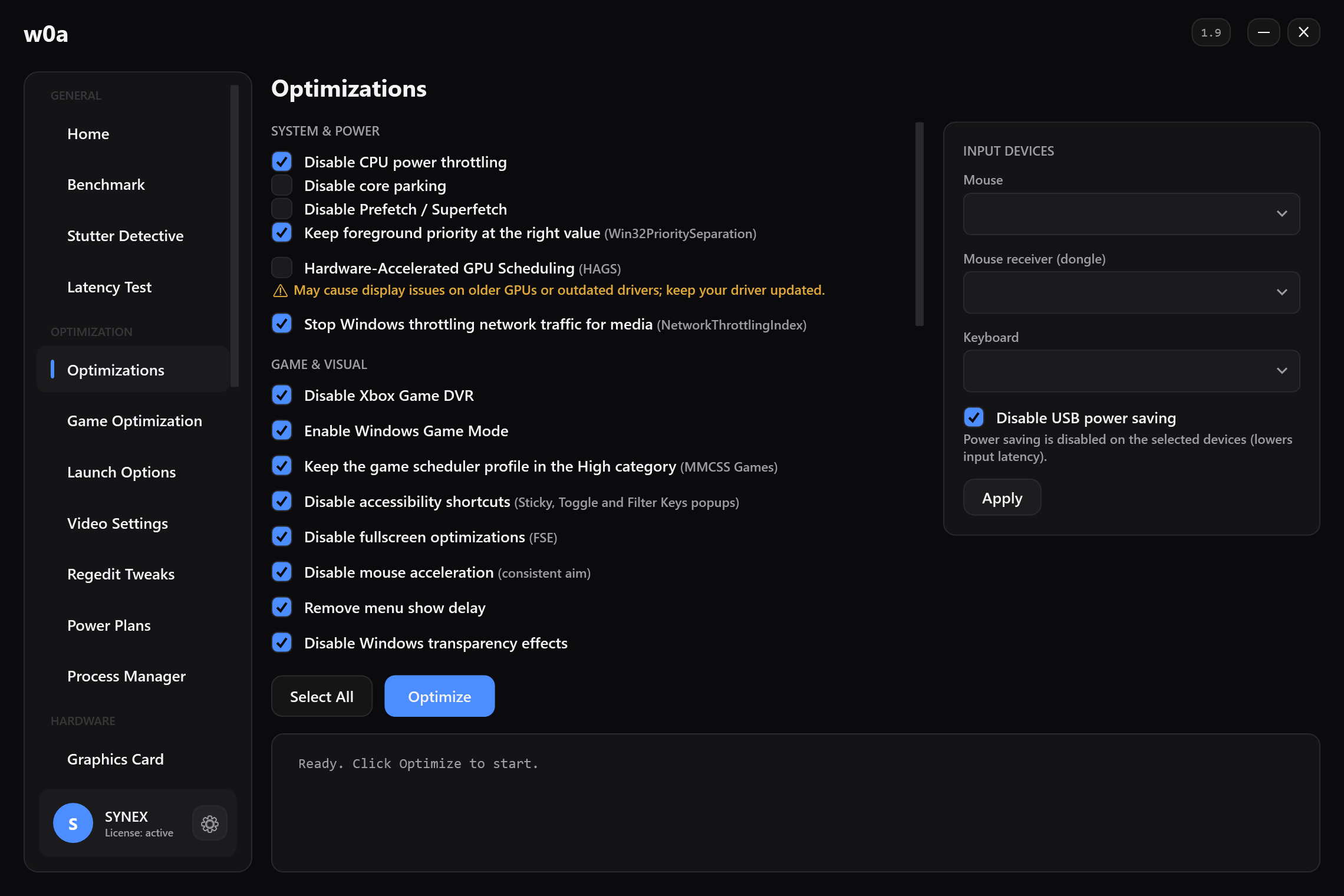
This page is not behind a plan. Each switch is one setting with its own tick box, so you can turn on five and measure, rather than pressing one big button and hoping. Every switch that writes something records what was there before.
Regedit Tweaks — Pro, 21 entries
This is the page that clears out what Windows starts on its own and never mentions: Recall and Copilot background capture, consumer features (the suggested apps that reappear in the Start menu), Delivery Optimization's upload sharing, background app activity, and the network-usage service. It also puts the mouse and keyboard input queues at a fixed size, removes Explorer's startup delay and turns off the window and taskbar animations.
One entry there is worth reading twice: TdrDelay is set back to the Windows default. Some tools raise it. On a real machine that is where CS2 froze, so w0a repairs the value instead of writing it.
Graphics Card — Pro
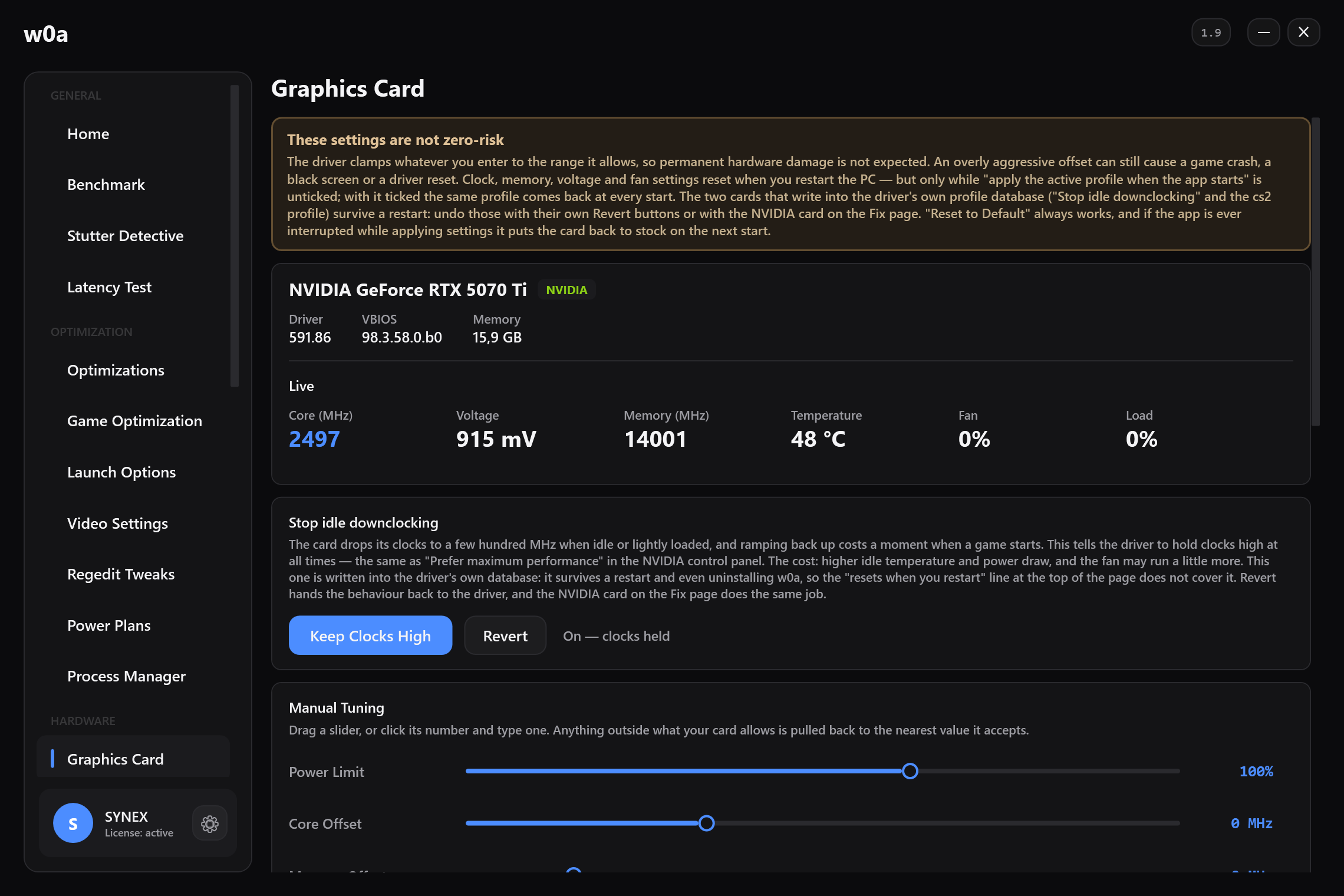
Power limit, core and memory offset, voltage and fan curve, plus a switch that stops the card downclocking when it is idle. The driver clamps anything you type to the range it allows, so a typo cannot damage the card — but an over-ambitious offset can still crash a game or reset the driver, and the page says so at the top rather than in a footnote.
Fix — free
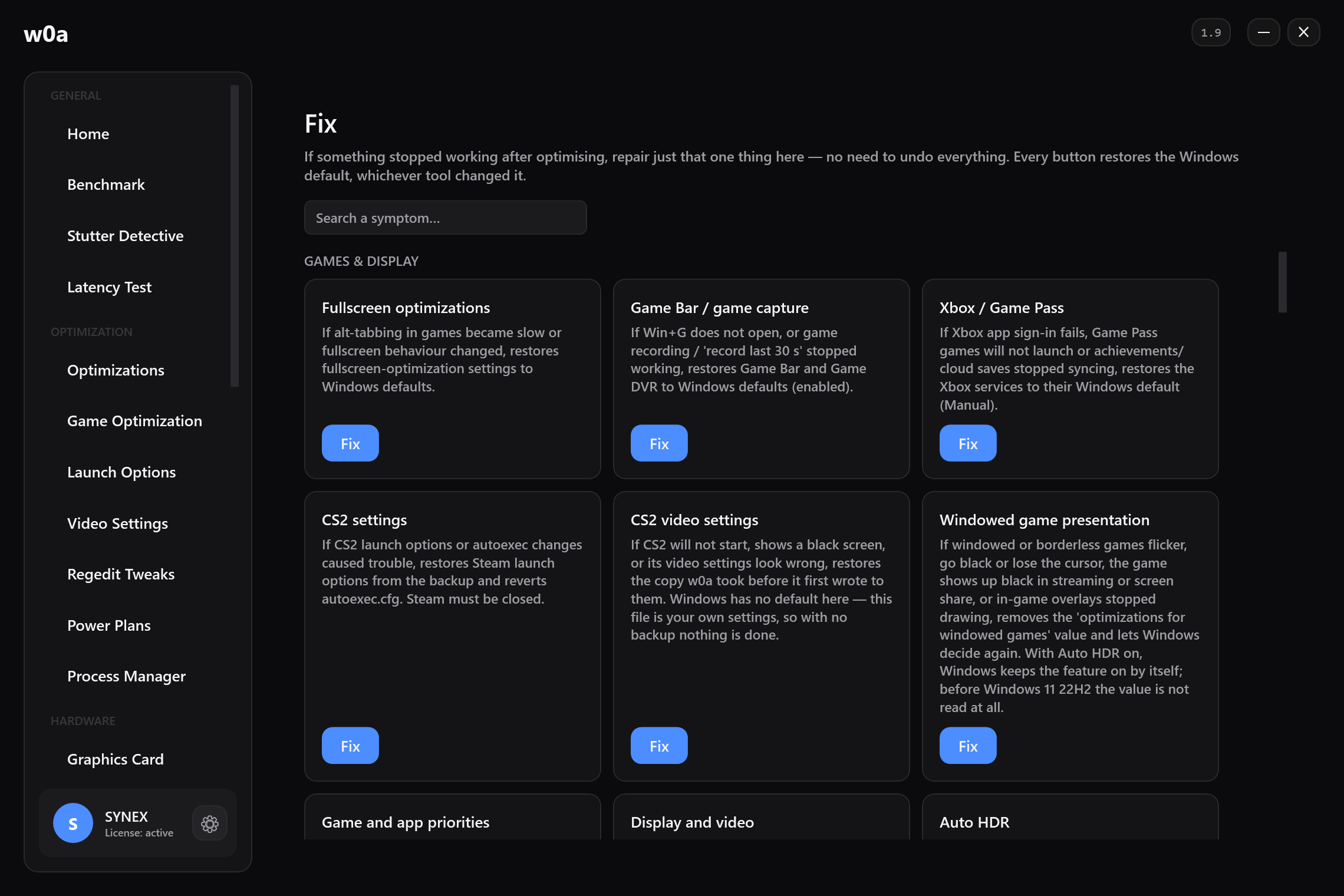
Every tweak in the product has a repair card here, and each card writes the Windows default back unconditionally — it does not depend on w0a having a backup, and it does not care which tool made the change. If something in this guide broke a feature you needed, this is where you undo that one thing instead of undoing everything.
What w0a will not do
- No kernel-level tweaks.
DisablePagingExecutive,LargeSystemCache, timer-resolution
overrides and the rest of that family are refused outright. The Fix page can still remove them, because a machine an older tool has already touched has to be repairable.
- No MPO or TDR switches.
OverlayTestMode,DisableOverlays,TdrDelay,TdrLevel— these
froze CS2 on a real machine, so they are not in the product.
- Nothing that cannot be undone. Every write goes through a backup log first, and the Fix page
above is the second, independent way back.
Then measure again
Second capture, same scene, same settings. Look at the 1% low, not the average. If it did not move, say so to yourself honestly and undo what you turned on — that is what the Fix page is for, and it is a better outcome than carrying a change that does nothing and telling other people it works.
Measuring — did the change work?
Everything above is worthless if you can't tell whether it helped. Here's the protocol.
- Same scene, every time. A built-in benchmark, or a route you can walk identically. Not "a match".
- Warm-up run first, and discard it. NVIDIA effectively concedes why: its App added Automatic Shader Compilation to rebuild DirectX 12 shaders while the system is idle, "reducing the frequency of game runtime compilation after driver updates". A run taken right after a driver change measures shader compilation, not the driver.
- At least three repeats per configuration.
- One variable at a time. Change one thing, re-run, compare. Changing five settings and measuring once tells you nothing about which one mattered — and stacking five separately-measured gains into one total is arithmetic, not measurement.
- Compare the lows, not the average. This is the whole point. Averages hide exactly the events you are trying to remove. Look at the 1% low.
- Pin the background. Browser, recording software, downloads — identical in both captures, or the difference you measure is theirs.
- Judge against your own noise. If three runs of the same unchanged configuration vary by more than the difference you're excited about, you found noise, not an improvement.
Tools. w0a's Benchmark page does the before/after comparison for you: it records a run, reports the average FPS, the 1% low and either the stutters per minute or the worst frame, and puts two recordings side by side — take one before a change and one after, on the same scene, and compare the 1% low column. Vendor-neutral alternatives: NVIDIA FrameView, which measures "frame rates, frame times, power, and performance-per-watt" across a wide range of graphics cards, and Intel's open-source PresentMon, which captures "CPU, GPU, and Display frame durations and latencies" across DirectX, OpenGL and Vulkan. Note that these tools give you per-frame records; percentiles are computed from those records rather than handed to you. And if you're on Arc, remember the open crash issue with XeSS MFG plus CapFrameX or RivaTuner Statistics Server.
Often repeated, never measured
| Claim | Where it actually stands |
|---|---|
| "This driver branch is better" | Measure it on your own machine. Branch-wide regressions the vendor admitted in writing exist (Godot on R580, Black Myth: Wukong after R570); everything else is a single report. |
| "Low Latency Mode = Ultra raises the 1% low in every game" | Contradicted by NVIDIA's own wording: DX9/DX11 at launch (DX12 later), Vulkan still unsupported — and the subject is latency, not the 1% low. |
| "Turn Threaded Optimization on / off" | No vendor documentation, no measurement. Not recommended either way. |
| "Turn off Radeon Chill / Enhanced Sync / Boost" | No 1% low measurement exists. The only measurement we could find is about average FPS and is five to seven years old. |
| "You must enable / disable HAGS" | No source gives game numbers; the source usually cited recommends trialling it game by game. |
| "Turn Game Mode off" | No measurement. The mechanism argues for leaving it on. |
| "Set the shader cache to Unlimited" | No measured effect on Windows could be shown. |
| "Disable SMT / E-cores" | No verified measurement. You would trade known multi-core performance for an unverified gain. |
| "Downgrade a driver and you get banned" | Unsourced. The real risk is in re-signed packages and in driver features that reach into game code. |
| "The Studio driver is more stable in games" | Same branch, same day, same version number. Studio's reliability claim is made for creative applications. |
| "This setting gains you X% FPS" | A percentage with no hardware, no scene, no run count and no tool named is not a measurement. |
This page is dated 2026-08-23 — here's how to check all of it yourself
Every version number above will expire — 610.88 was already 26 days old on 2026-08-23, and both vendors ship several releases per quarter, so the next driver may exist by the time you read this. Learn the checks instead of trusting the numbers:
Your Windows version and build: run winver.
Windows versions, builds and support dates: the release information table. This is the single authority; it is also where you can see whether two versions received the same cumulative update.
Known issues before you install: the release health pages for 25H2 and 24H2.
Whether memory integrity is on: msinfo32 under "Virtualization-based Security Services Running", or the Core isolation page in the Windows Security app. Microsoft also documents the volatile registry key HKLM\System\CurrentControlSet\Control\CI\State → HVCIEnabled.
Whether an NVIDIA driver has an open issue that affects you: the release notes PDF, whose address is derived from the version number — https://us.download.nvidia.com/Windows/{version}/{version}-win11-win10-release-notes.pdf. Read section 3.2, Open Issues. Take the release date from the PDF, not from the installer file's timestamp — the two can differ.
NVIDIA security bulletins: the signed bulletin repository. Check which rows say Windows before quoting a severity at anybody.
AMD release notes: the pattern https://www.amd.com/en/resources/support-articles/release-notes/RN-RAD-WIN-<major>-<minor>-<patch>.html works — RN-RAD-WIN-26-8-1 is a live example — and the support-article archive gets you there too if the pattern ever changes. Read "Known Issues" every time; that is where the Starfield instruction lives.
Intel: the Arc download page carries the current version, date and release notes.
This last section is the part of the guide that doesn't expire, because it contains a method instead of a number. Everything above it does expire — so when the versions here look old, do not assume the reasoning is old too. Re-check the versions, keep the order.
Risk summary
Firmware update: can leave a machine unbootable, and will trigger the BitLocker recovery prompt on an encrypted volume. Back up first, keep the recovery key, keep the power connected.
DDU in Safe Mode: Windows Hello PIN does not work there. Without your actual password — and your recovery key if the drive is encrypted — you can lock yourself out.
Third-party repackaged drivers (NVCleanstall): re-signed, therefore outside NVIDIA's official support, with an EasyAntiCheat-compatible signing mode but no equivalent guarantee for other kernel anti-cheats. If you play competitive titles, the stock installer is the lower-risk path.
Downgrading drivers: the real, documented cost is security, not bans. A Windows user on 581.80 today is missing the Windows fixes from NVIDIA's January and May 2026 bulletins — 8 CVEs, worst rated CVSS 7.8. On Intel Arc, versions older than 32.0.101.6987 were removed from the Download Center in April 2026, so keep a local copy of anything you rely on.
LTSC: there is no legal retail purchase path for an individual, the 90-day evaluation is not for production use, and Microsoft states LTSC is not intended for general-purpose PCs and may lose support from external tools over time.
Disabling Secure Boot, TPM 2.0 or VBS: disabling the first two can lock you out of games you own. Disabling VBS is a real security decision with a possible anti-cheat cost, and the published performance case for it comes from 2023–2024 hardware, with the same laboratory later concluding it is no longer necessary on Windows 11. If you do it, do it deliberately and measure it yourself.
Playing CS2? Which launch options still do anything, and where the frames really are in the video menu: How to fix CS2 stutter and low FPS: a measured checklist
Did this page help?
What was missing, or what did not work? We read every one of these.
If this page did not solve it, write to us — say which article you read, and we will fix the article.