Your mouse may not report at the rate on the box, and that is the first thing to measure rather than assume. A "1000 Hz" mouse on a shared USB controller or on a long unpowered hub can deliver fewer reports than it advertises — and the number it actually delivers is measurable on your machine in about fifteen seconds.
The six causes below each come with a way to rule them out. Their order is not a ranking: how often each one turns out to be the answer has not been measured.
Claimed rate and measured rate are different numbers
A USB input device asks the host how often to poll it. The request lives in a field of the endpoint descriptor called bInterval, and Microsoft's reference states plainly that "This value reflects the device's configuration in firmware. Drivers cannot change it." On a full-speed device, bInterval of 1 means one poll per 1-millisecond frame; on a high-speed device the interval is counted in microframes, eight to the millisecond.
That is the request. What you get depends on the link, the controller, the driver and the power policy in between. So the two numbers have to be read side by side, and w0a shows them side by side:
- The USB Ports page lists each connected device and, in its detail card, shows Polling interval (bInterval) — what the device asked for — next to Report rate, measured from real input. A 1000 Hz reading under a 1 ms request is a device doing exactly what it said. The same reading under a 125 µs request is a link or a driver not keeping up.
- The Home page carries a Mouse Polling Rate card that measures your mouse from real movement and shows the median interval in milliseconds and how steady it was, as a percentage. It shows what your mouse does. It does not repeat the number on the box, and it will not round an honest 940 Hz up to a confident 1000.
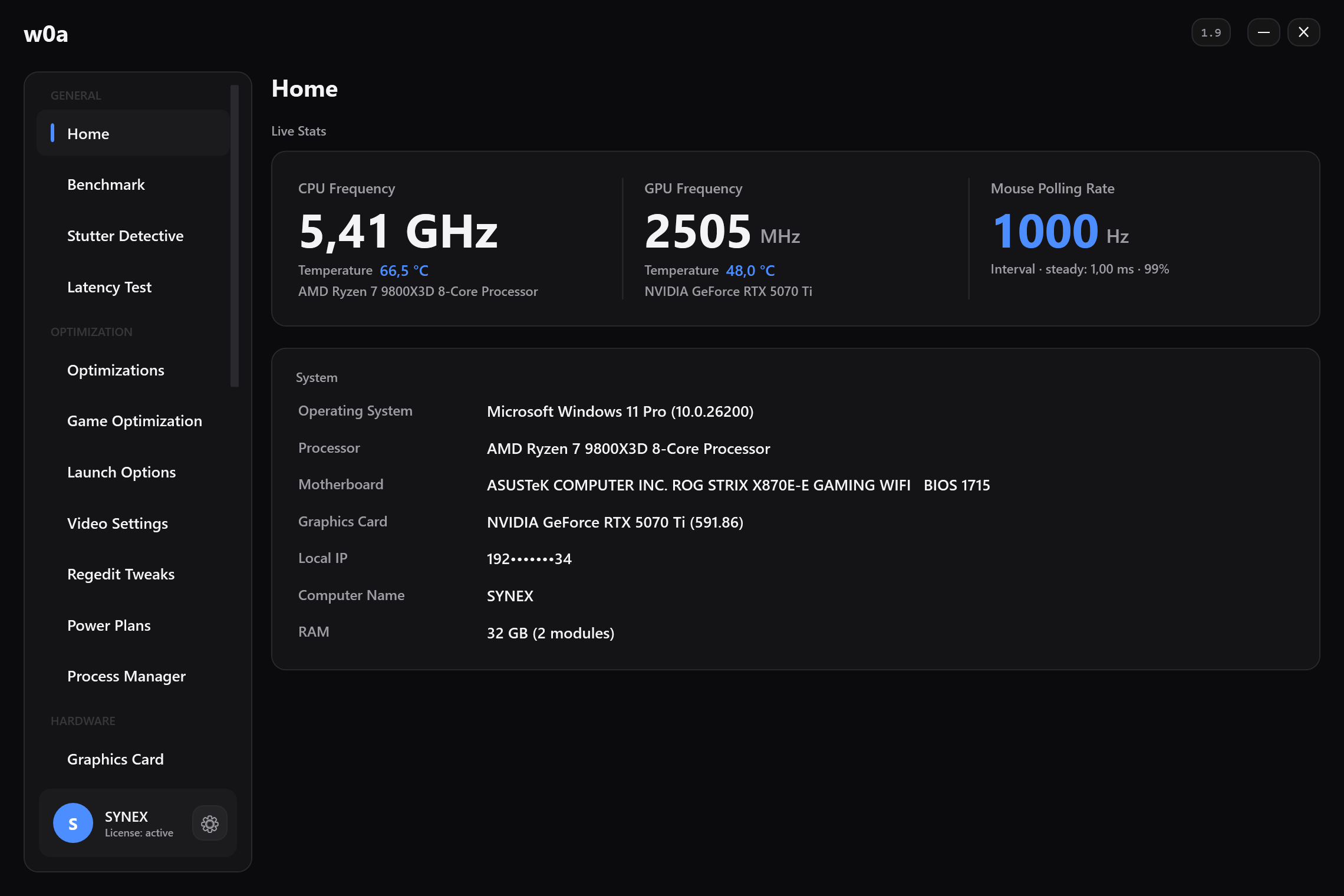
Both readings come from the raw input stream and are timed with the high-resolution performance counter, not the system clock. That detail matters more than it sounds: the ordinary Windows message path coalesces mouse movement to the pace of the window that is reading it, so a tool built on it cannot tell a 1000 Hz mouse from a 125 Hz one. Why the test asks for 12 seconds of mouse movement is the longer version of that argument.
Move the mouse in circles while either reading is taken. A mouse that is not moving sends nothing, and a measurement of nothing is not a low report rate — it is no measurement.
The steadiness matters more than the peak
An average report rate hides the thing you feel. What you feel is the report that came late.
The Latency Test page reports, per device: Report rate, Shortest, Average, Median, Slowest 1% and Slowest 0.1%, plus a spread line that splits every interval into three buckets — on time, late (1.5–3× your own median) and lost (past 3×). The thresholds are relative to your own median on purpose. A machine that is uniformly slow and a machine that is mostly fast with spikes are different problems, and a fixed number would hide the difference.
A mouse that reports at a clean 1000 Hz with 2% of its intervals in the "lost" bucket will feel worse in a flick than one at 500 Hz with none. That is the whole reason the page prints a distribution instead of a single figure.
The six causes, and how to rule each one out
1. The port, the hub and the controller
Every device behind a hub shares the hub's link, and every device on one host controller shares that controller's schedule. A high-report-rate mouse next to a webcam, a headset and an external drive on the same controller is competing for the same slots.
- Move the mouse to a port on the machine itself, ideally one that does not share a controller with a busy device. The USB Ports page groups devices by the controller they sit behind, which is what makes this checkable rather than a guess.
- Take the mouse off monitor hubs, KVMs and unpowered hubs entirely while you test.
- Retake the Home page reading. If the measured interval got shorter or steadier, keep the new port.
2. Windows was allowed to put the port to sleep
If the first movement after a pause feels heavy and then everything is fine, this is one cause worth ruling out. Windows does not do it on its own: for mice and keyboards it keeps selective suspend off unless the device itself or its maker's driver asks for it. The USB port power settings card restores the input-device power permissions to the Windows default in one press, and the USB Ports page can set a single device to Never suspend.
3. Wireless
A wireless mouse adds a radio hop and a receiver that has its own schedule. A modern dedicated receiver does not have to be slower than a cable; the failure mode to look for is not a constant offset, it is congestion — a crowded 2.4 GHz band, a receiver plugged into the back of the case behind a metal panel, or a dongle sharing a port block with a USB 3 device.
Bluetooth is a different case again and is not built for this. If the mouse is on Bluetooth and the feel matters, use the dedicated receiver or a cable. Bluetooth covers the pairing side when the device itself misbehaves.
Test wireless with the receiver on a front port or a short extension on the desk, not on the back of the case. This costs nothing, takes a minute, and tells you whether the receiver's position is behind "my wireless mouse stutters in one room".
4. Pointer acceleration and pointer speed
Acceleration means the distance the cursor travels depends on how fast you moved, so the same hand movement gives you a different result each time. That is not latency, but it reads as "my aim is inconsistent", and people arrive here looking for a latency fix.
What w0a does: the Optimizations page has a switch that turns acceleration off by writing MouseSpeed, MouseThreshold1 and MouseThreshold2 to 0 under HKCU\Control Panel\Mouse, and flattens the pointer curve so one count moves one unit.
What it deliberately does not do: it never writes MouseSensitivity. Your desktop pointer speed is your setting, and a tuning tool that silently changes it has broken something you chose. If an older tool did change it, mouse, keyboard and touchpad puts the Windows defaults back — including acceleration, which the Windows default has on.
Shooters that read raw input for aiming, CS2 among them, ignore the Windows pointer curve, so turning acceleration off is mainly about the desktop and about menus. It is still worth doing, and it is not the reason your flicks miss.
5. DPI and in-game sensitivity are one number, not two
Counts per inch multiplied by in-game sensitivity is what decides how far the crosshair goes. Raising DPI and lowering sensitivity to compensate leaves the same result with a different rounding, and lowering DPI to a number the sensor is not native at can make movement grainy rather than smooth.
There is no software fix for this and nothing in w0a touches it. It is a setting on your mouse and a setting in your game, and the only useful method is to pick one and stop changing it.
6. The sensor, the surface and the game's own smoothing
Lift-off distance, a reflective or dirty mousepad, a sensor being asked to work outside its tracking speed — these produce exactly the "my aim went somewhere else" feeling and software cannot see them at all. No driver reads sensor confidence; Windows receives a movement report and has no way to know it was wrong. If a measured, steady report rate sits next to aim that still feels unpredictable, clean the surface and try a different pad before you change another setting.
Some games also apply their own input smoothing or acceleration independently of Windows. Check the game's own settings; nothing outside the game can turn that off.
A run you can actually do
- Open Home, move the mouse in circles for a few seconds, and write down the Mouse Polling Rate reading — the interval in ms and the steady percentage.
- Open Latency Test, run the full 12 seconds while moving, and write down Report rate, Median, Slowest 1% and the three spread percentages.
- Change one thing: the port, the receiver position, the hub, the power setting.
- Repeat step 2 in the same way and compare. Same movement, same duration, or you are comparing two different things.
- Keep the change only if the numbers moved. Undo it if they did not — the Fix cards exist for exactly that.
What software cannot do here
- It cannot raise the rate your mouse's firmware asks for. Microsoft's own documentation says drivers cannot change that field.
- It cannot see the sensor, the surface or the lift-off distance.
- It cannot remove the radio hop on a wireless link, only stop the port being suspended around it.
- It cannot make the game sample input more often than once per frame.
The two things it can do — show you the measured rate beside the claimed one, and show you which driver is holding a core — are the two things you cannot get any other way, and they are enough to tell a hardware answer from a software one.
Related
- Reading the latency test
- Why the test asks for 12 seconds of mouse movement
- Why key presses feel late in games
- How to reduce input lag: what software can and cannot shorten
- USB port power settings
Of the dozen or so stages between a click and a changed pixel, software owns three; the firmware, the display and the game own the rest: How to reduce input lag: what software can and cannot shorten
Did this page help?
What was missing, or what did not work? We read every one of these.
If this page did not solve it, write to us — say which article you read, and we will fix the article.