Most of the delay between your finger and the game is in the keyboard, not in Windows. A key press crosses six stages before a pixel changes, and software can shorten exactly two of them. If you came here to find a registry value that removes keyboard lag, the honest answer is that no such value exists — but three of the six stages have real, checkable faults, and those are worth twenty minutes.
This page splits the path, names the owner of each piece, and says plainly which parts are out of reach.
The path a key press actually takes
| Stage | Who owns it | Can software shorten it? |
|---|---|---|
| 1. The switch closes; the keyboard's controller scans its matrix and debounces the contact | Keyboard firmware | No |
| 2. The keyboard makes a report available on its USB interrupt endpoint, at the interval its firmware asked for | Keyboard firmware | No |
3. The host controller collects the report; kbdhid.sys and kbdclass.sys hand it up | Windows + chipset driver | Only by removing a driver that is stalling |
| 4. The report crosses any filter driver or low-level hook sitting in the input path | Keyboard suite, macro layer, overlay | Yes |
| 5. The game reads input — in most engines, once per frame | The game | Indirectly, by raising the frame rate |
| 6. The frame is rendered, presented, scanned out and lit | GPU, Windows, monitor | Partly — see the input lag no software can fix |
Stage 1 — the part nobody can touch
A keyboard does not send a signal when a switch closes. Its own controller sweeps the key matrix on a loop, and when it sees a contact it waits out the bounce before it will call the key pressed. That wait is a firmware constant. It is not exposed to Windows, no driver can read it, and no registry value anywhere on your machine changes it.
This is why two keyboards on the same PC can feel different with every other variable identical, and it is why "keyboard lag" is so often a hardware answer wearing a software costume.
Stage 2 — the polling interval is set by the keyboard, in writing
USB devices that send input do it over an interrupt endpoint, and the endpoint descriptor carries a field called bInterval that states how often the host should ask. Microsoft's own reference for that structure is unambiguous: "This value reflects the device's configuration in firmware. Drivers cannot change it."
The same page gives the mapping. On a full-speed device, bInterval of 1 means a polling period of one 1-millisecond frame — the 1000 Hz figure keyboards advertise. On a high-speed device the period is counted in microframes, eight to the millisecond, by the formula Period = 2 ** (bInterval - 1).
Two things follow, and they are the most useful sentences on this page:
- A keyboard that reports at 125 Hz is asking to be polled every 8 ms. Nothing in Windows can make it report faster. If the number matters to you, it is a firmware or a purchase decision.
- If your keyboard has a switch or a configuration tool that sets its report rate, that tool is writing firmware configuration. That is the only route.
Some keyboards ship in a compatibility mode (often labelled "boot protocol", or tied to a 6-key rollover switch) that also lowers the report rate. Check the keyboard's own manual or its configuration software before you conclude that Windows is slow.
The two settings people change that do not do this
Both of these appear in every "fix keyboard lag" list. Neither one shortens the path from a press to the game, and we would rather say so than sell you a placebo.
Key repeat delay and rate. KeyboardDelay and KeyboardSpeed under HKCU\Control Panel\Keyboard govern what happens when you hold a key down: how long before the character starts repeating, and how fast it repeats afterwards. The first press is not affected at all. w0a can set the delay to its shortest step, and the product's own description says what that buys you — a faster console, chat box and menu, not a faster shot. If a previous tool left these at odd values, the key repeat rate and delay card puts the Windows defaults back.
Keyboard data queue size. KeyboardDataQueueSize sets how many reports the class driver can hold if the thread that drains them stalls for a moment. A bigger queue means fewer dropped reports during a stall. It does not make any report arrive sooner, and the product says this in its own interface rather than in a footnote. Input queues covers what that value is and how to put it back.
If a page anywhere tells you that raising a queue size lowers input latency, you now know enough to disbelieve it. A queue is a buffer against loss, not a shortcut.
Stage 4 — the one stage that is genuinely yours
This is where real, measurable keyboard delay lives on a normal machine, and it is the stage almost nobody checks.
Anything that wants to see your keystrokes before the game does installs itself in the input path: keyboard vendor suites with macro engines, per-key lighting daemons that react to typing, streaming and chat overlays, screen recorders, remapping utilities, accessibility tools. Each one is a hop, and a hop that is busy or hung holds the whole path.
Windows has a timeout for exactly this case. When a low-level hook does not answer within LowLevelHooksTimeout milliseconds, Windows skips it and moves on; Windows 10 1709 and later use at most 1000 ms, however large the value. How long Windows waits when the value is not set is not documented, and we have not measured it. w0a's Regedit Tweaks page has an entry that sets that wait to 1000 ms by writing LowLevelHooksTimeout under HKCU\Control Panel\Desktop.
Read that honestly: capping the timeout does not make a healthy hook faster. It shortens the freeze when a hook has already gone wrong. That is worth having, and it is not a latency reduction.
What to actually do, in order:
- Close the keyboard's own software completely — not minimise it to the tray. Exit it, then play a round.
- Close overlays one at a time: the game platform overlay, voice chat overlay, recording software, the GPU vendor overlay.
- If the feel changes, you have found your answer, and you can decide which feature is worth which delay.
- If nothing changes, stop looking here. Move to stage 3.
Stage 3 — a driver holding the core the keyboard needs
A keyboard report arrives as an interrupt. If some unrelated driver is sitting on that processor core inside an interrupt or a deferred call, your keystroke waits, and it waits above every thread priority in the system — so it appears in no frame-time graph and in no task manager.
This is measurable, and it is the one part of the path where a number can be put on your own machine:
- Open Latency Test in w0a.
- Press start and keep moving the mouse for the full 12 seconds — the mouse is the traffic the test uses to sample the input path.
- Read the Longest driver interruption figure and the driver list underneath it, which is sorted by longest hold and names the file.
- Anything at or above 1 ms is displacing reports. Anything at or above 4 ms is the thing to fix before anything else.
The first fix to try for a driver holding a core is to update that specific driver from the hardware maker. Reading the latency test explains the colours and, more usefully, what the number deliberately leaves out.
Stage 5 — the game reads input on its own schedule
In most engines the game samples input once per frame. A game running at 60 FPS looks at your keyboard every 16.7 ms; at 240 FPS, every 4.2 ms. That is arithmetic, not a measurement, and no engine publishes its exact input timing — so treat it as the mechanism and not as a per-title figure.
The practical consequence is that raising a low frame rate shortens the wait at this stage, and that a keyboard is not what limits you at 40 FPS. If your frame rate is unstable rather than low, what the stutter scan looks for is the page for that.
What is left, and what to do about it
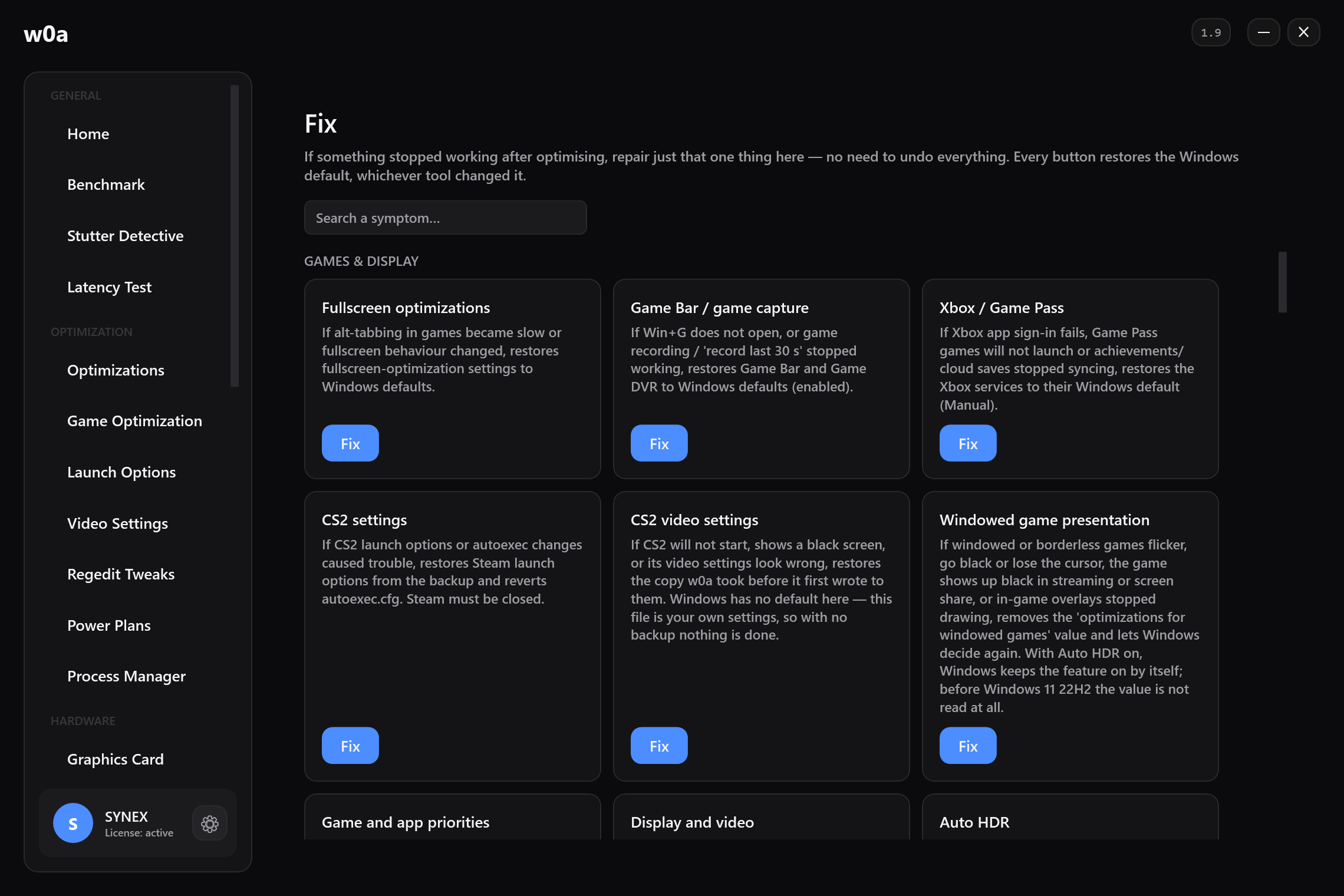
A short, reversible checklist. Every one of these can be undone, and the steps below that point at a Fix card write the Windows default back regardless of which tool made the change.
- Plug the keyboard into a port on the machine itself, not a monitor hub, an unpowered hub or a KVM. Each of those is another controller between the device and the host.
- Check what the port is actually doing. w0a's USB Ports page lists each device with the polling interval its firmware asked for beside the report rate measured from real input. A device asking for 1 ms and delivering far less is a link or a driver problem, not a keyboard problem.
- Undo old input tweaks. Mouse, keyboard and touchpad and input queues restore the Windows defaults if an older tool changed them.
- Stop USB power management from putting the port to sleep, if your keyboard is slow on the first press after a pause. USB port power settings is that card.
- Measure, then decide. Take the Latency Test before and after each change. A change you cannot see in a measurement is a change you should undo.
What software cannot do here
- It cannot change your keyboard's scan interval or its debounce time. Those are firmware, and Windows never sees them.
- It cannot make a device report faster than the interval its own descriptor asks for — Microsoft's documentation says drivers cannot change that field.
- It cannot remove the game's per-frame input sampling.
- It cannot shorten the monitor's part of the path. That belongs to the input lag no software can fix.
What it can do is take out a stalled hook, expose a driver that is holding a core, and stop a port going to sleep. On a healthy machine those add up to less than people hope, and on a sick one they are the whole difference. Measuring is how you find out which machine you have.
Related
- Why my aim feels delayed
- I hear footsteps after I see them
- How to reduce input lag: what software can and cannot shorten
- Reading the latency test
- Mouse & keyboard tweaks
Of the dozen or so stages between a click and a changed pixel, software owns three; the firmware, the display and the game own the rest: How to reduce input lag: what software can and cannot shorten
Did this page help?
What was missing, or what did not work? We read every one of these.
If this page did not solve it, write to us — say which article you read, and we will fix the article.